TvNado Not Working? How to Fix IPTV Buffering and Errors
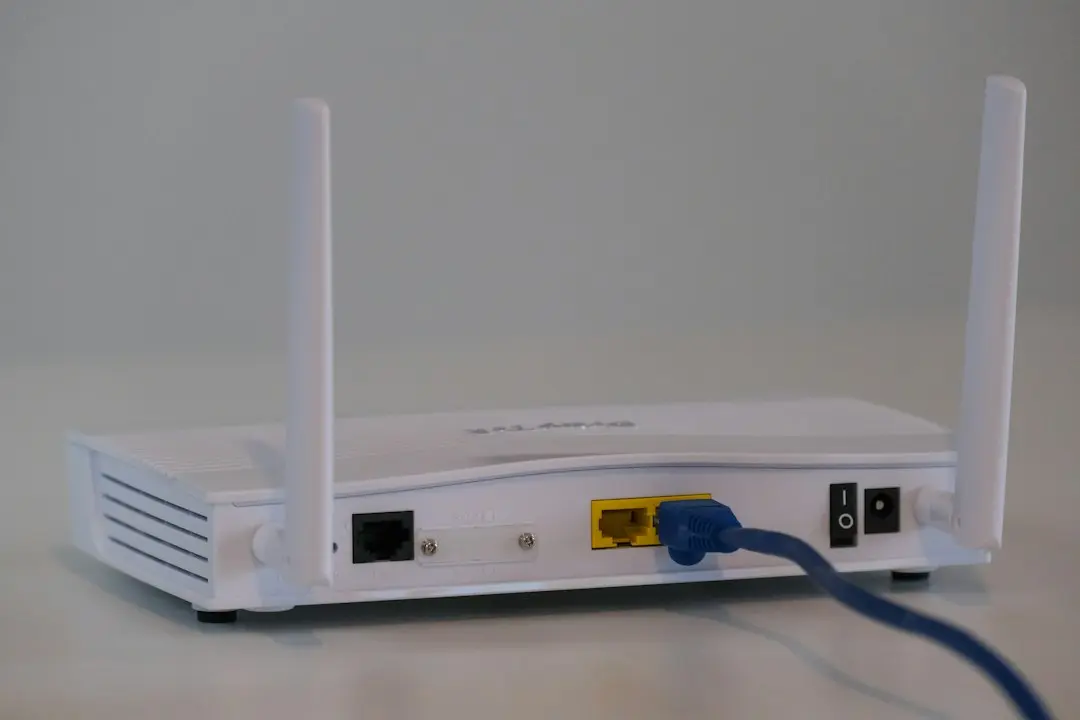
When TvNado is not working the way it should, a stream that buffers, a login that won't go through, an app that won't open, the cause is usually somewhere you can check in a few minutes. IPTV travels over your home internet, through your Wi-Fi, into a device and an app, so a problem at any step looks the same on screen. This guide walks through each step in order, from the quickest checks to the ones that need our help, and tells you exactly what to send the TvNado team on WhatsApp if you're still stuck.
Start here: three quick checks
Before anything else, these three fix more problems than everything else combined:
- Restart the device and the router. Unplug both for 30 seconds, plug the router back in first, wait for it to come up, then start the device.
- Check that your plan is active. Plans don't renew automatically. If your plan has ended, streams stop; look for the renewal link we email 7 days before the end.
- Try a second channel. If one channel fails but others play, the problem is that channel, not your setup. If nothing plays, keep reading.
Why IPTV buffers
IPTV buffering means the video arrives more slowly than it plays, so the app pauses to catch up. The service sends the stream; everything between it and your screen can slow it down. The usual causes, in order of how often we see them:
Not enough speed on the device
TvNado needs at least 15 Mbps for HD and 30 Mbps or more for 4K. What matters is the speed on the device you watch on, not your plan's advertised speed or the speed on your phone next to the router. Run a speed test on the TV or the streaming stick itself if it has a browser, or on a phone held next to it.
If you're below 30 Mbps, watch in HD rather than 4K. If you're below 15 Mbps, the fixes in the next section matter most.
Weak or crowded Wi-Fi
Wi-Fi loses speed through walls and floors, and every device on the network shares it. A TV at the far end of the house, while someone else downloads a game, is a classic buffering setup.
- Use an Ethernet cable to the TV or box if you can. It's the single most effective fix.
- Move the router closer, or out of a cupboard, and keep it off the floor.
- Use the 5 GHz band if your router offers it and the device is in the same room; it's faster at short range.
- Pause big downloads and updates on other devices while you watch.
Too many streams at once
Your TvNado plan covers 1, 2 or 3 devices streaming at the same time. If more devices than that try to play at once, streams can stop. Count who's watching right now, including a phone left playing in another room.
A busy or full device
Streaming sticks and older smart TVs have little memory. If a device has been on for days, or its storage is nearly full, apps slow down.
- Restart the device rather than leaving it on standby.
- Clear the player app's cache in the device settings, if it offers that option.
- Uninstall apps you don't use to free storage.
TvNado not working at all? Login and app problems
If nothing plays, or you can't get past the sign-in screen, the cause is usually the login or the app rather than the connection.
"Invalid login" or sign-in errors
Most often a space slipped in before or after the username or password during copy-paste, or a capital letter went missing. Type each field by hand, exactly as in your welcome email: the portal URL, the username and the password. Can't find the email? Check your spam folder, then ask us on WhatsApp.
The app won't install on a Fire TV Stick
Check that apps from unknown sources are turned on in the Fire TV Stick's developer options, then enter the Downloader code or link again, exactly as it appears in your TvNado welcome email. The Fire TV Stick steps cover this in detail.
The TV guide is empty or wrong
After you first sign in, the player downloads the channel list and the 7-day guide, which can take a minute on a big list. Let it finish. If the guide is still empty, refresh it in the player's settings or sign out and back in.
It worked yesterday and stopped today
Restart the device and router first. Then check whether your plan has reached its end date, and whether too many devices are streaming at once. If none of those explains it, message us.
Problems on one device only
If TvNado works on your phone but not on the TV, the service is fine and the problem is on that device or its connection. Compare the two: is the TV on Wi-Fi while the phone is next to the router? Is the TV's app up to date? Moving the TV to a cable connection, or reinstalling the app, often settles it. Watching on a new device? Your login isn't tied to one device, so you can sign in on whichever one you're using, within your plan's device count.
For help choosing or switching apps, see our IPTV app guide.
What to send TvNado support
If you've tried the checks above, message the team on WhatsApp; support is available 24/7. To get a quick answer, include:
- Your device and app (for example, a Fire TV Stick with the TvNado app).
- What you see: buffering, an error message (the exact words), a black screen, an empty guide.
- When it started, and whether it affects one channel or all of them.
- Your speed test result on that device.
- The email address you ordered with, so we can find your plan.
You'll find the WhatsApp link on our contact page.
A note on "no buffering" promises
You'll see providers promise zero buffering, ever. No IPTV service can promise that, because the last part of the journey, your connection, your Wi-Fi and your device, is outside its control. TvNado doesn't make that promise. What we do is state the speed you need and help you find the cause when something goes wrong.
IPTV not working: FAQ
Why does my IPTV keep buffering?
Usually because the device isn't getting enough speed: weak Wi-Fi, other devices using the connection, or a speed below 15 Mbps for HD or 30 Mbps for 4K. Try a cable connection and a restart first.
Why is my IPTV not working at all?
Check that your plan is still active, restart the device and router, and re-enter your login by hand. If it still doesn't work, message support with your device and what you see.
Does a VPN fix buffering?
We don't recommend a VPN as a fix. Start with the connection checks above; they address the usual causes.
Can I watch in HD if my connection is too slow for 4K?
Yes. Between 15 and 30 Mbps, watch in HD rather than 4K for smoother playback.
How do I reach support?
On WhatsApp, 24/7, through the link on our contact page. That's our only support channel.
Get TvNado working again
Most of the time when TvNado is not working, the fix is a restart, a cable instead of Wi-Fi, or a login typed by hand. Work through the checks in order, and if the stream still buffers, send us the details on WhatsApp. New to TvNado? Ask whether a free trial is available to test it on your own connection first, or see the plans and prices.
Want to try TvNado?
Ask for a free trial on WhatsApp, or pick a plan: 3, 6 or 12 months for 1, 2 or 3 devices, from $39.
Related articles
TvNado App or an IPTV Player: Which IPTV App to Use
Which IPTV app should you use with TvNado? The TvNado app, standard IPTV players like TiviMate and IPTV Smarters Pro, and how to pick one safely.
Read the article
TvNado: How to Choose an IPTV Provider You Can Trust
Choosing an IPTV provider? TvNado's guide to the green flags and red flags of any IPTV service provider, with our own terms laid out for comparison.
Read the article
TvNado IPTV USA: US Channels, Local TV and What You Need
Looking for IPTV in the USA? What TvNado's IPTV channels cover in the US, how local channels are grouped by state, and what you need at home.
Read the article